How to manage IP addresses
Organisation administrators need to manage the public IP addresses for their physical locations to ensure users can connect to the GovWifi service.
Viewing current IP addresses
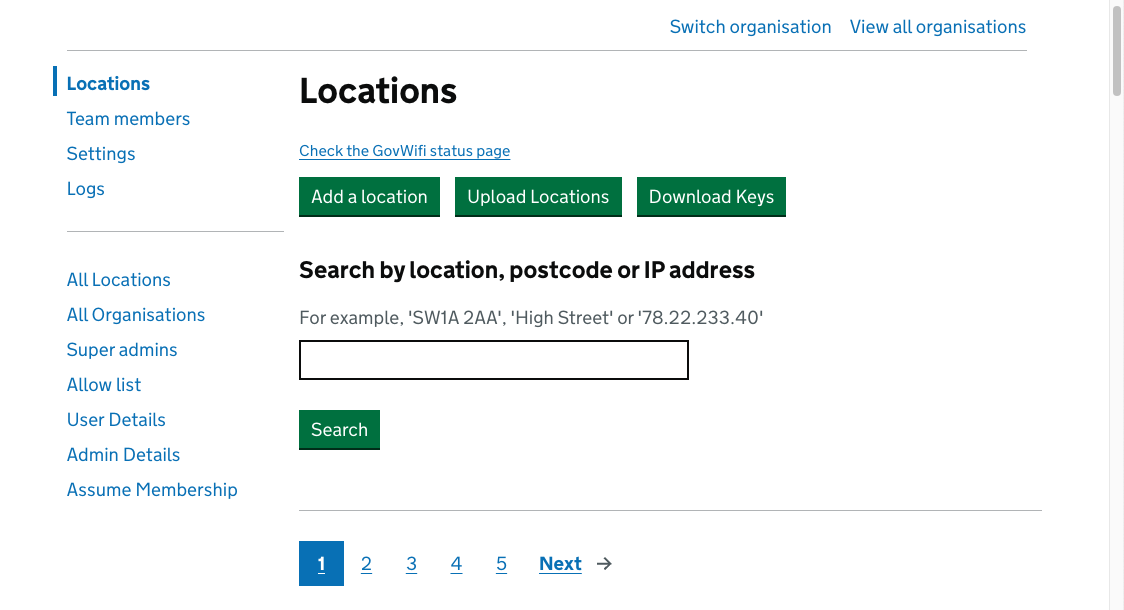
- Navigate to the Locations tab in the main menu. Use the search bar to find the specific building or site you need to update (you can search by postcode, address, or existing IP).
Adding a new IP address
- In the IPs section, enter the new public IPv4 address for the building or location.
- Select ‘Add IP’.
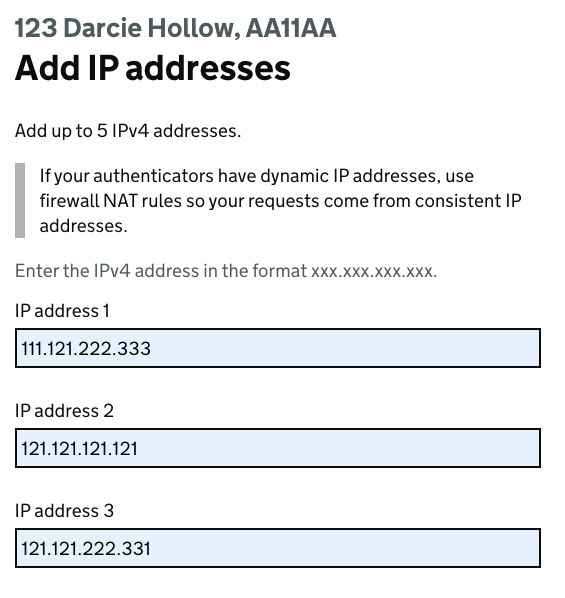
- The new IP address will appear in the list.

Removing an IP address
- Locate the IP address you wish to remove within the IPs list.
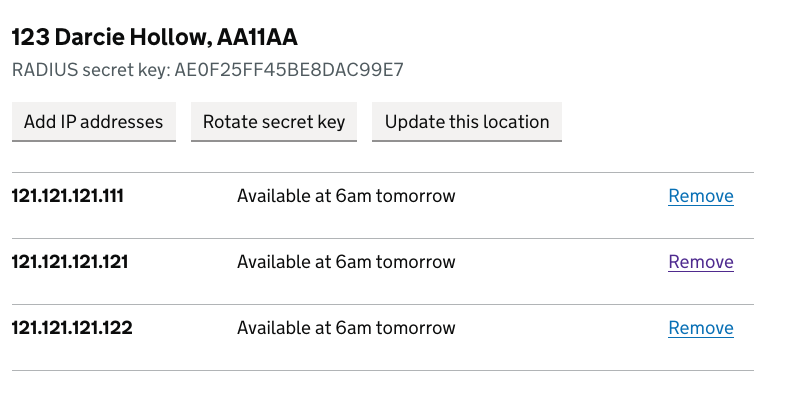
- Select the ‘Delete’ or ‘Remove’ option next to the specific IP.
- Confirm the removal if prompted.
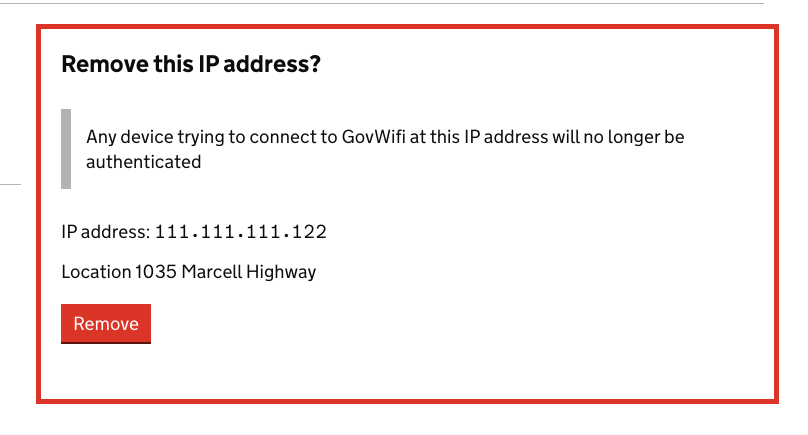
- A banner will confirm the IP address has been removed.

Note: Changes to IP configurations may take time to propagate across the network.